Introduction
This is the user manual to the CineNova booking System. It focuses on helping staff and managers in the cinema to manage revenu and screen bookings. The system includes:
- A main menu
- A revenu table
- Individual film sheets
- A summary sheet
- A 15% summary sheet
- A profit bar chart
This is the main screen within the system and helps users to navigate your screens to book movies
This will help managers, staff and the cinema owners see how much money they have made per screen.
These sheets will help staff to book customers into their seats and manage the seating plan.
This shows staff and managers the income that all screens are making in total and if a screen or screens have sold out.
This is a sheet that shows the effects on the business when a discount of 15% is applied to all seats on all screens.
This shows how much the cinema has made per sreen in a bar chart format
Navigating the Spreadsheet
The booking system has been designed with staff and customers in mind, this means that the system is particicularly easy to mode around. This section explains how users and staff can access different parts of the Spreadsheet, locate film sheets, and understand where to find key information such as discounts and summaries.
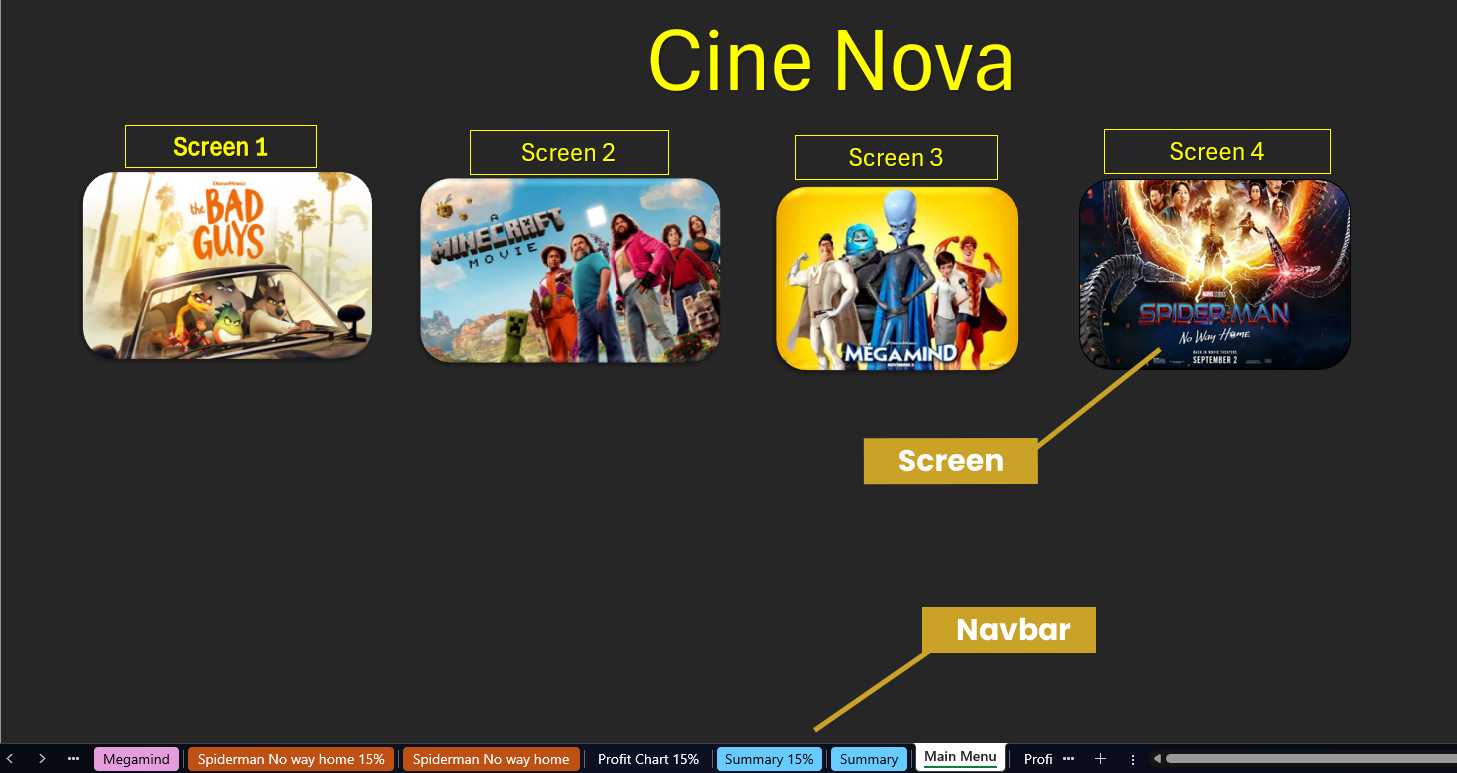
Navigating the main menu
The main menu shows the movies that are available at the time of booking. For the customer to open the screen they would like to book, they would simply click on the movie's poster, and it would redirect them to that screen.
Switching Between Sheets
To switch between sheets, simply click the screen you would like to switch to using the navigation bar at the bottom of the spreadsheet. This allows you to move easily between the Main Menu, individual film sheets, the 15% discount sheets, and the Summary sheet, as shown in the image above.
What each seating tier means
The seating tiers are esseintial for your cinema as it helps the user pick the seat they would like to book based on their budget. This section will go over what tiers there are, what they mean and how much they cost.
each seating plan is split into 4 sections:
- Super Saver
- Saver
- VIP
- Regular
This is the first 3 rows in the seating plan and are coloured blue. The seats cost £3.99 to ensure that customers who are on a tight budget can still come to your cinema.
This is the next 6 rows in the seating plan and are coloured red. The seats cost £4.99 and are at a bit of better viewing angle so that customers feel they are getting a good view for a £1 more than the super saver, potentially encouraging customers to pay the extra £1 for a better viewing experience.
This is the next 3 rows in the seating plan and are coloured green. The seats cost £6.99, the highest price for the best viewing experience. This is for customers who want the best viewing angle and overall comfort while watching the move.
Thid is the last 4 rows in the seating plan and are coloured pink. The seats cost £5.99 and ensure a good viewing angle while also being a £1 cheaper than VIP potentially encouraging customers to purchase those seats for the best viewing angle at £1 more.
Understanding the calculation table
The calculation table is the one displayed next to the seat booking section. This section will go through what each of the columns in this table does and what they mean.
- No of seats
- Seats Booked
- Vacancies
- PPS
- Income
- Poss income
- Status
- Total
This displays the total number of seats in a row.
This displays the number of seats booked in a row.
This shows how many seats are not booked in a row
This displays the seat price for each tier per row. The first 3 rows of this are Super Saver, the next 5 rows are saver etc. etc.
This displays the amout of income made so far in a row
This displays the Possible amount income you could make in a row
This row shows the status in a row. If a row is fully booked, it will show 'Vacancies', if there are no seats left it will show 'Booked'
This shows the calculated total for the full table. This time, if there are 30 or less seats, the status turns to 'Low availability' and 'Booked' when there are 0 seats left.
The 3 images below show what each variation of the table looks like.
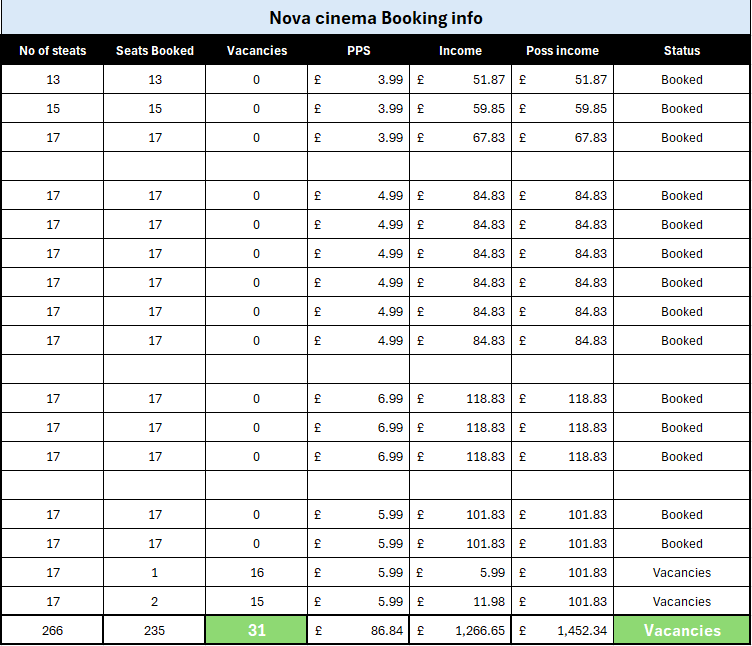
the image above shows what the table looks like when there are 31 seats or more available in the screen.
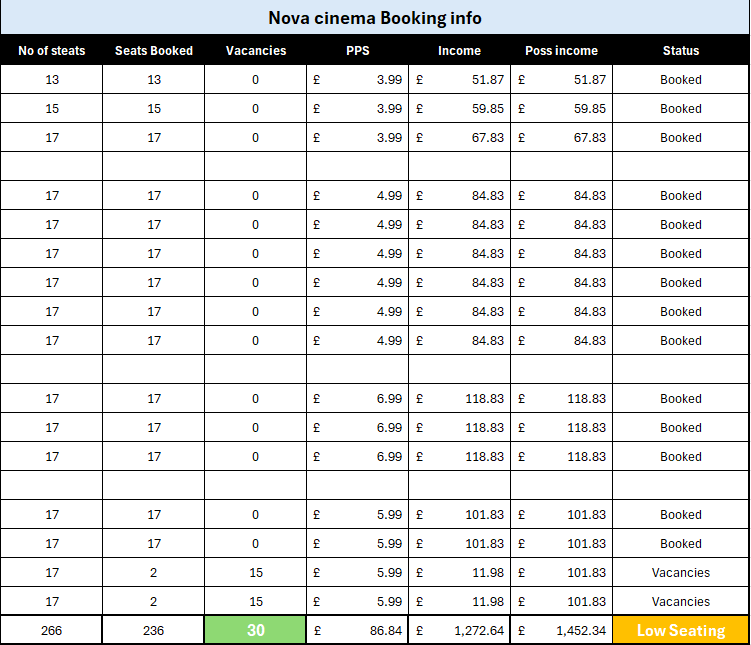
The image above shows what the table looks like when there are 30 seats or less available in the screen.
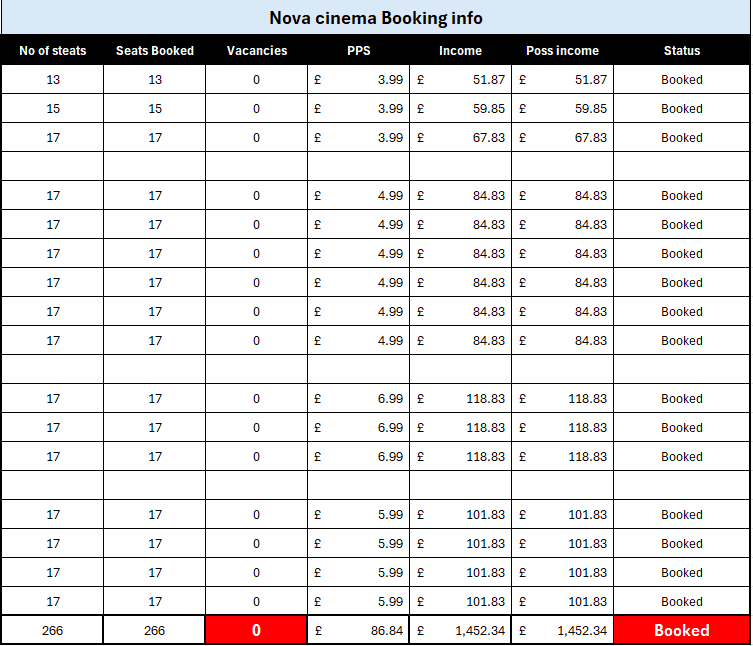
The image above shows what the table looks like when there are no available seats in the screen.
Understanding Film Sheet Layout
Each film sheet has been designed to be easy to use and understand. This section explains the layout of the film sheets, including the seating plan, booking instructions, and key information such as ticket prices and discounts.
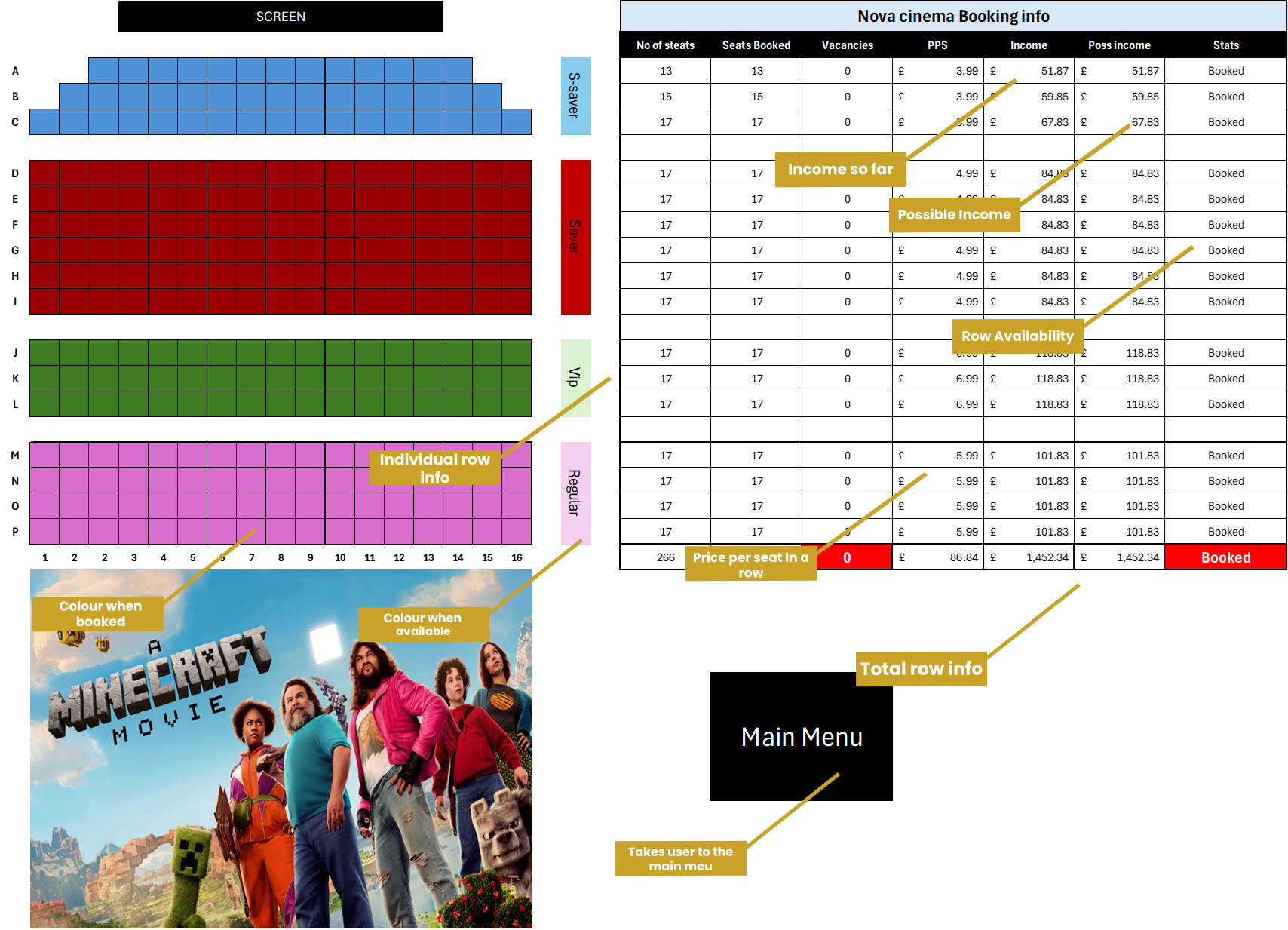
Customer view
This is the screen that the customers see when they go to book a screen. To display a booked seat, the colour of it goes darker. If the seat is not booked, the colour will be a lighter shade. There is also a button that takes the customer back to the main menu. This is shown in the labeled picture above.
Staff View
In the staff view, you will see a table with the booking of that screen. This includes the income you've made per row, the possible income you could make off of a row and the seat availability of a row. The overall total is calculated at the bottom of the table as well as an indication telling you if you have low seating or a fully booked screen.
How to book a seat
The seat booking system has been made to help customers easily understand how to book a seat. There are clear indications within the booking screen on how to book. This section will go over those indications as well as what happens with the booking info table when the cusomer does so.
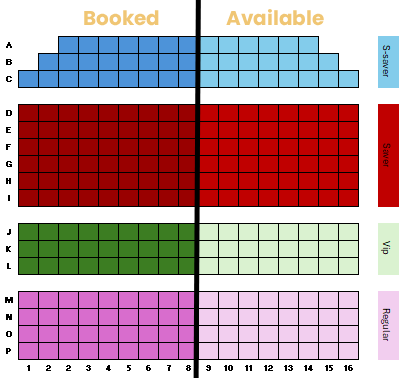
Understanding the seating layout
The lighter shade of the seat represents an available seat.
The darker shade of the seat represents a booked seat.
Another way to know if a seat is booked or available is by looking at the colour of the tier that is next to the row. If the seats match that colour, it inidcates that the seat is available.
What happens to the table when a customer books a seat?
When a customer books a seat, the table will automatically update to show the new amount of income made altogether and in a row. If it is the last seat in the screen, the total availability will update to "booked".
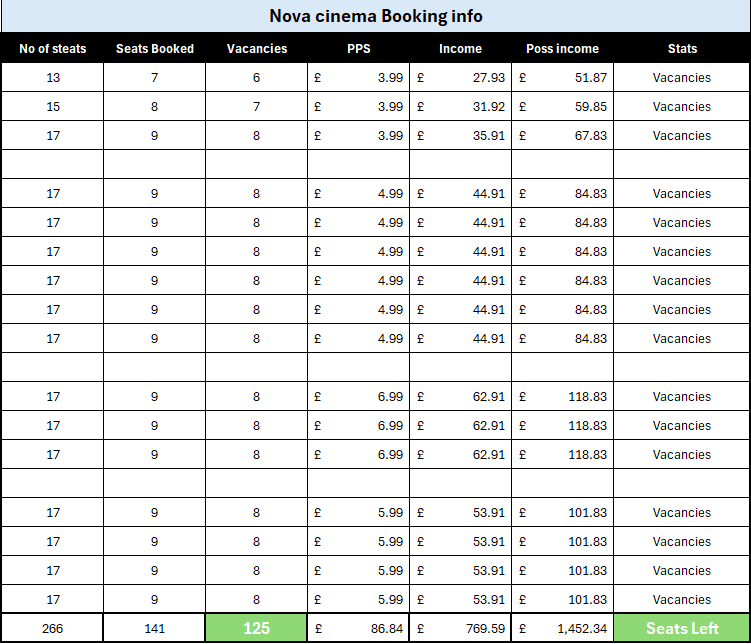
Using the table from the screen that was used as an example for the seating plan, you can see that it shows how many seats are left, how many are booked, how much income has been made per row and the status of the row. At the bottom of the table, the total amount earned for that screen aswell as the availability of the screen.
How to cancel or edit a booking.
Cancelling or editing a booking is key for customer satisfaction. The customer may want to change their seat or may have last minute plans that stop them from going to a movie. For this reason, the ability to cancel and edit bookings are a key feature in the system. This section will go over how to do this and what it will affect on the staff and finance side of things.
To cancel a booking, simply click the seat you wish to cancel and press Backspace on your keyboard. This will release the seat and make it available again. You’ll know the cancellation was successful when the seat returns to its original colour (the lighter shade).
To edit a seat, simply remove/cancel the seat you originally had which is the same process as the one shown above. Then, book the new seats you would like.
What happens on the finance side when a user cancels a seat?
When a customer cancels a seat, your chart will take the price off of the calculated total. If the screen is fully booked and a customer deletes a seat, the availability in the row will change from 'Booked' to 'Vacancies,' and the overall availability will change from 'Booked' to 'Seats left' like shown in the video below.
Using the "15%" sheets.
The 15% summary is a key feature in the system as it shows what happens to your earnings when a certain discount has been applied. This section will go over what happens to your earnings and how to use the sheet.
The seating layout and booking have the same process as the normal screens, the only difference between the 2 sheets is the table. In the 15% discount screen, the seats have 15% taken off of the price so your original VIP seating price goes from the original price of £6.99 to the discounted price of £6.52.
The other difference is that when there are 30 seats left in the screen, the overall availability changes from 'Seats left' to 'Low availability' and then to 'Booked' when there are no seats left
Checking the overall summary.
The overall summary helps you quickly look at the availability for all of your screens as well as the total earnings made off of them all. This section will go over how to understand this sheet and what other data it shows.
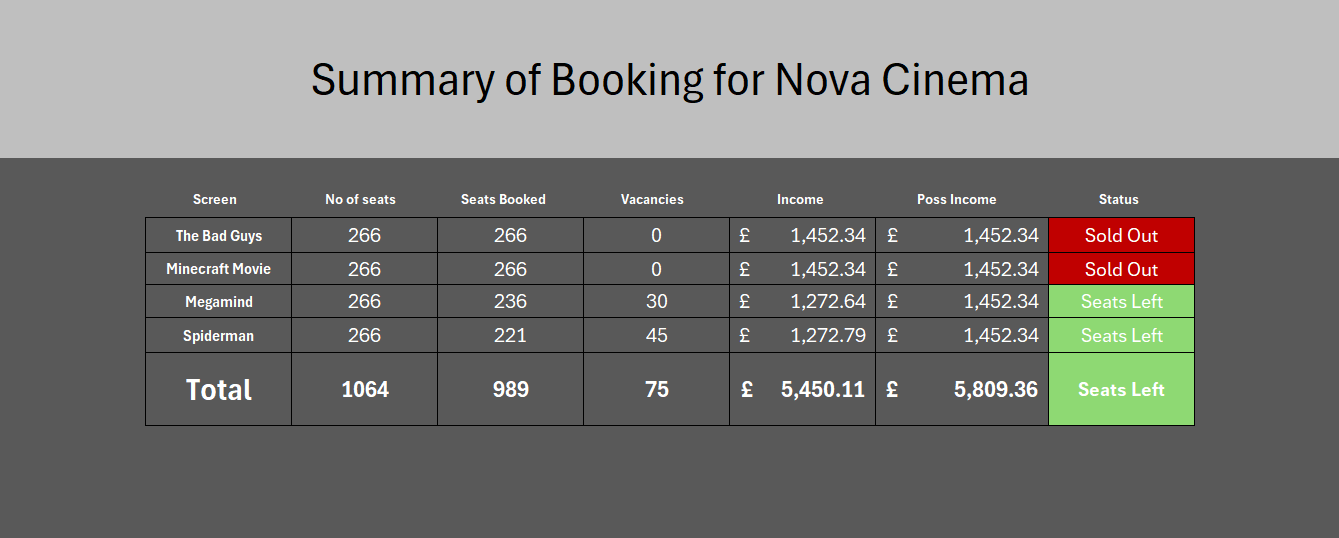
In the example image used above, you can see that for the full cinema, there are seats left in the movies Megamind and bad guys. You can also see that from all 4 screens, the cinema has earned an overall total of £5,450.11 out of a total of £5,809.36.
Using the 15% summary sheet.
The 15% summary sheet is the same as the normal summary sheet, with the only difference being that when there is 133 seats or under per screen, the availability changes from 'Seats Left' to 'Low Seating' and the total availability changed to 'Low Seats' at 532 seats as shown in the example below.
Troubleshooting.
While using the system, you may encounter some errors. These errors may be caused by restrictions that are put in place to ensure the cusomer doesn't make any mistakes when booking a seat. This section will go over these errors and restrictions to ensure that they can be fixed by staff with ease.
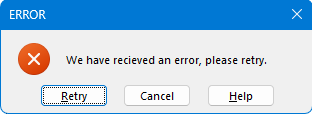
The main error you may encounter is the one shown in the photo above. This may be caused by the customer or person booking a seat mispressing a key on their keyboard. The key that you use to book a seat is '1'. If this error occurs, the customer may have input a number bigger than 1 or a letter.
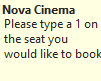
To counter this error, we have added a screen tip so that when the cusomer hovers over the seat, the message displayed in the image above shows up underneatht their cursor.
How do you deal with the error?
To deal with the error, simply click the retry or cancel button delete any text in the box of the seat you would like to book. Then, click the number 1 on your keyboard to re-book the seat.
Tips for Best Practice.
To maintain quality within the system, we recommend you follow the tips below.
- Do not change any of the formulas
- Always use the main menu to navigate
- Save regularly
Formulas have been specifically designed for this sheet’s calculations. Avoid editing them to ensure everything works correctly.
This ensures that the right screen has been selcted to book.
Saving often prevents data loss in case of crashes, power cuts, or accidental changes. It ensures your booking is always backed up.
FAQ's.
Below are some frequently asked questions along with the answers
The formulas are carefully designed to calculate results automatically. Changing them could break links or cause errors in your data.
Always use the main menu to move between sections. It ensures everything loads correctly and prevents broken links.
Saving often prevents data loss if your browser or system crashes. It keeps your most recent changes safe.